Boole HPC Platform Guide
Introduction
The Boole High Performance Computing (HPC) Platform is operated by CloudCIX. It provides compute resources for interactive data exploration, batch processing, parallel workloads, GPU jobs, containers, and object storage access.
Use this guide as a practical starting point for:
Accessing Boole HPC.
Running interactive and batch Slurm jobs.
Running CPU, GPU, and MPI examples.
Loading software modules and managing Python environments.
Using object storage and Apptainer containers.
Create an HPC Account
Before accessing Boole HPC, create an HPC account in CloudCIX:
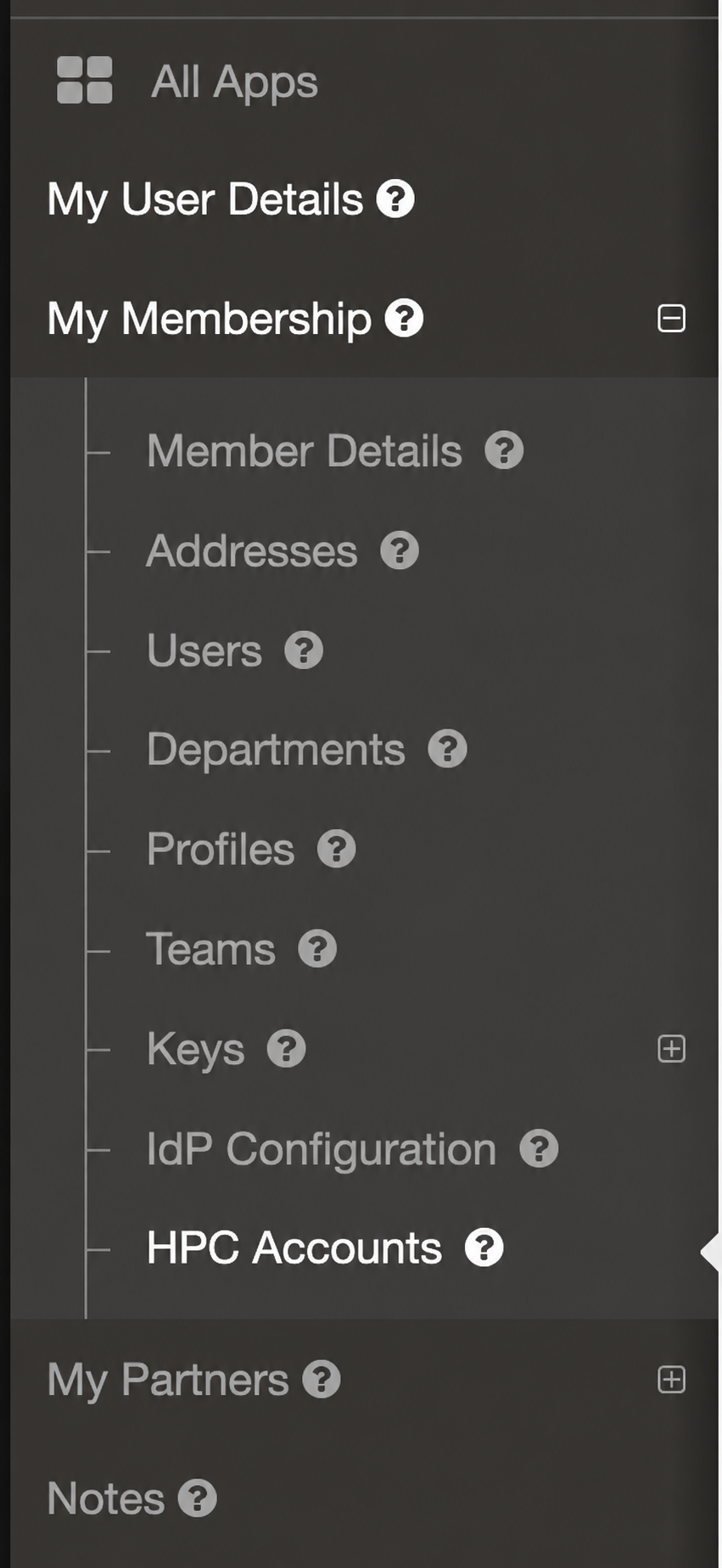
In the Membership app, open My Membership and select HPC Accounts.
Click Create HPC Account.
Enter a username and password, then click Save.
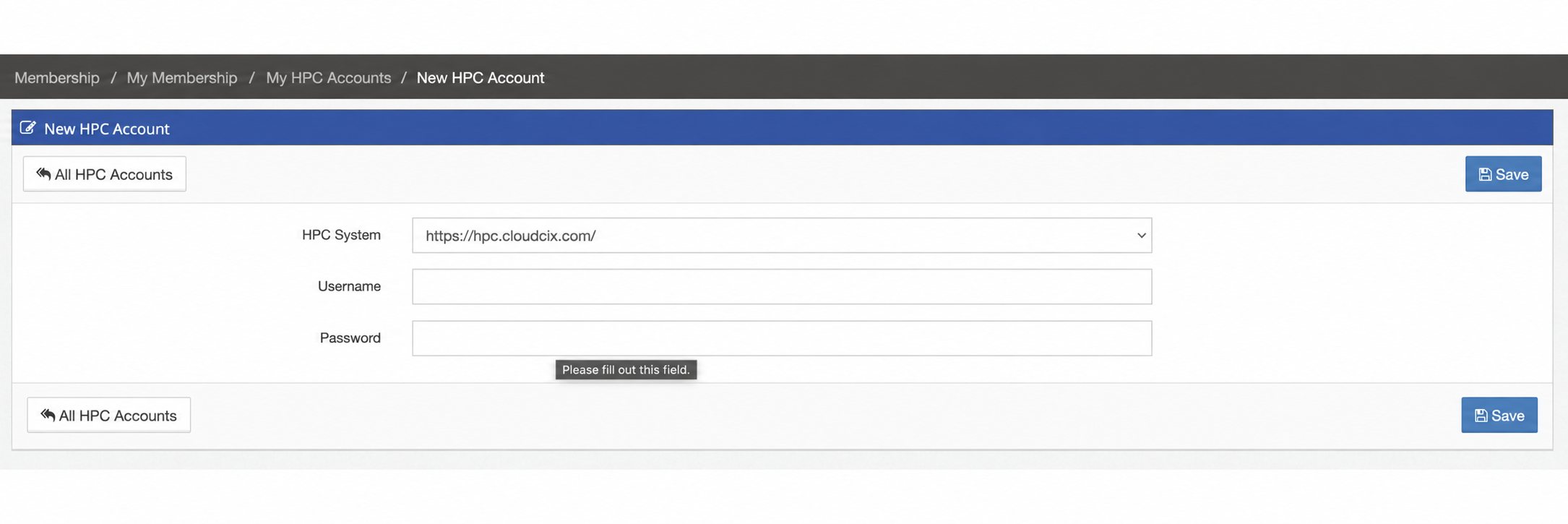
You can then sign in to hpc.cloudcix.com using these credentials.
Video
We recommend watching the short Boole HPC Basics video for an overview of the platform:
Access Methods
The main access point is Boole HPC Portal:
From the portal, you can upload data, launch jobs, and start interactive applications. Available apps include:
Application |
Use |
|---|---|
Boole Shell Access |
Browser-based terminal access to the cluster. |
Remote Desktop |
Full remote desktop environment for GUI-based workflows. |
CloudCIX AI Lab |
AI and machine learning workspace. |
Jupyter Notebook |
Python, data analysis, and scientific computing. |
Jupyter + Spark |
Jupyter environment with Spark for distributed data processing. |
RStudio Server |
Browser-based R environment for statistics, analysis, and visualization. Bioconductor is pre-installed. |
VS Code Server |
Browser-based Visual Studio Code development environment. |
ParaView |
Visualization and analysis for scientific datasets. |
nf-core pipelines |
Bioinformatics workflow pipelines. |
You can also connect directly to the HPC system using SSH or transfer files via rsync from HEAnet & CloudCIX IP addresses only.
Slurm Basics
Slurm is the workload manager used to run jobs on Boole HPC.
Use:
srunfor interactive jobs.sbatchfor batch scripts.squeueandscontrolto monitor jobs.
Jobs are submitted to partitions. A partition is a queue for a particular type of hardware or workload.
Important
Default Resource Allocation
The default resource allocation is 1 CPU and 1 GB of memory per node.
If your job needs more resources, request them in your srun command or sbatch script.
Available Partitions
Partition |
Use |
|---|---|
|
Virtualized cloud infrastructure. Suitable for smaller or flexible workloads. |
|
Dedicated bare-metal compute nodes. Use this for high-performance CPU jobs. |
|
Bare-metal nodes with GPUs, such as NVIDIA A100. Use this for GPU-accelerated workloads. |
Available Resources
To see available RAM, CPU, and GPU resources per node, run:
scontrol show node
Interactive Jobs with srun
The srun command launches an interactive session on a compute node. This is useful for debugging, testing code, or short experimental runs.
Example: request 2 CPU cores and 4 GB of memory for 1 hour on the cloud partition:
srun --partition=cloud --cpus-per-task=2 --mem=4G --time=01:00:00 --pty bash
Once the session starts, you will be inside a compute node shell where you can run your program interactively.
Batch CPU Job
Batch jobs are useful for work that can run unattended. Create a file named cpu_test.sh:
#!/bin/bash
#SBATCH --job-name=cpu_test
#SBATCH --output=cpu_test_%j.out
#SBATCH --partition=physical
#SBATCH --cpus-per-task=4
#SBATCH --mem=8G
#SBATCH --time=01:00:00

# Load the default compiler runtime
module load gcc-runtime/13.2.0

echo "Running on host: $(hostname)"
echo "Job started at: $(date)"

# Example program: Python hello world
python3 -c "print('Hello from Slurm on $(hostname)!')"

echo "Job finished at: $(date)"
Submit the script:
sbatch cpu_test.sh
Check the output:
cat cpu_test_<jobid>.out
Batch GPU Job
For GPU workloads, request GPUs with --gres=gpu:<N>. Example with 1 GPU on physical-gpu:
Interactive session:
srun --partition=physical-gpu --gres=gpu:1 --cpus-per-task=4 --mem=16G --time=01:00:00 --pty bash
Batch job script:
#!/bin/bash
#SBATCH --job-name=gpu_test
#SBATCH --output=gpu_test_%j.out
#SBATCH --partition=physical-gpu
#SBATCH --gres=gpu:1
#SBATCH --cpus-per-task=4
#SBATCH --mem=16G
#SBATCH --time=01:00:00

# Load CUDA
module load cuda/12.9.0

echo "Running on host: $(hostname)"
nvidia-smi

# Example: run a CUDA program or container
# ./my_gpu_script
Submit it:
sbatch my_gpu_script.sh
Check the output:
cat gpu_test_<jobid>.out
MPI Demonstration with Slurm
This example demonstrates a simple Message Passing Interface (MPI) workload running across multiple compute nodes. It uses Python and mpi4py to show how MPI ranks are distributed across the cluster.
MPI is a standard for parallel computing. It allows multiple processes to communicate while running across one or more compute nodes.
In this example, we will:
Create a simple MPI application.
Submit the application to Slurm.
Run MPI tasks across multiple nodes.
Verify that MPI ranks are distributed across the allocated nodes.
Prerequisites
Ensure the following are available:
Python 3
OpenMPI or another MPI implementation
mpi4py
If mpi4py is not already installed, it can be installed with:
pip install --user mpi4py
Create the MPI Application
Create a file named mpi_hello.py:
from mpi4py import MPI
import socket

comm = MPI.COMM_WORLD
rank = comm.Get_rank()
size = comm.Get_size()

print(f"Hello from rank {rank} of {size} on {socket.gethostname()}")
This script:
Retrieves the MPI rank, or process number.
Retrieves the total number of MPI processes.
Prints the hostname on which each rank is running.
Create the Slurm Job Script
Create a file named mpi_demo.slurm:
#!/bin/bash
#SBATCH --job-name=mpi-demo
#SBATCH --partition=physical
#SBATCH --nodes=2
#SBATCH --ntasks-per-node=4
#SBATCH --time=00:05:00
#SBATCH --output=mpi-demo-%j.out

echo "Running MPI demo"
echo "Nodes allocated:"
scontrol show hostnames "$SLURM_JOB_NODELIST"

mpirun python3 mpi_hello.py
Slurm Parameters
Parameter |
Description |
|---|---|
|
Submit the job to the physical compute node partition |
|
Request two compute nodes |
|
Launch four MPI ranks per node |
|
Set a five-minute time limit |
|
Write job output to a file |
This configuration launches a total of 8 MPI ranks across 2 nodes.
Submit the MPI Job
Submit the job to Slurm:
sbatch mpi_demo.slurm
Example output:
Submitted batch job 12345
Monitor the MPI Job
Check the job status:
squeue -u $USER
View the Results
Once the job has completed:
cat mpi-demo-*.out
Example output:
Running MPI demo
Nodes allocated:
pcpt01
pcpt02

Hello from rank 0 of 8 on pcpt01
Hello from rank 1 of 8 on pcpt01
Hello from rank 2 of 8 on pcpt01
Hello from rank 3 of 8 on pcpt01
Hello from rank 4 of 8 on pcpt02
Hello from rank 5 of 8 on pcpt02
Hello from rank 6 of 8 on pcpt02
Hello from rank 7 of 8 on pcpt02
This demonstrates that:
Slurm allocated two compute nodes.
MPI launched eight parallel processes.
The MPI ranks were distributed across both nodes.
Scaling the Example
To run across more nodes or launch more MPI processes, modify the Slurm directives.
For example:
#SBATCH --nodes=4
#SBATCH --ntasks-per-node=8
This configuration launches:
4 compute nodes
8 MPI ranks per node
32 total MPI processes
Monitoring Jobs
List your jobs:
squeue -u $USER
Cancel a job:
scancel <jobid>
Show job details:
scontrol show job <jobid>
Email Notifications
Slurm can send you an email when your job starts, ends, fails, or is cancelled.
To enable this, add the following options to your srun command or sbatch script:
Option |
Description |
|---|---|
|
Event or events that trigger an email. |
|
Email address to send notifications to. |
Valid TYPE values:
Type |
Meaning |
|---|---|
|
Job starts running. |
|
Job finishes successfully. |
|
Job fails. |
|
Job is cancelled. |
|
Shorthand for all events above. |
Example: interactive session with email notification:
srun --partition=cloud --cpus-per-task=2 --mem=4G --time=01:00:00 \
     --mail-type=ALL --mail-user=you@example.com --pty bash
Example: batch script with email notification:
#!/bin/bash
#SBATCH --job-name=notify_test
#SBATCH --output=notify_test_%j.out
#SBATCH --partition=physical
#SBATCH --cpus-per-task=2
#SBATCH --mem=4G
#SBATCH --time=00:30:00
#SBATCH --mail-type=END,FAIL
#SBATCH --mail-user=you@example.com

echo "Job running on $(hostname)"
sleep 60
echo "Job finished."
This will send an email to you@example.com when the job ends or fails.
Loading Software with Modules
Our cluster uses Lmod (via Spack) for managing software. Before running your jobs, you may need to load specific compilers, libraries, or applications.
List available modules:
module avail
Search for a module by keyword:
module spider gcc
Load a module:
module load gcc-runtime/13.2.0
Show loaded modules:
module list
Conda / Miniforge
For users who want to manage Python environments and packages independently of the cluster-wide software modules, we recommend using Miniforge or Conda in your home directory. This allows you to create isolated environments and install Python packages without affecting other users.
Installing Miniforge
Download the latest Miniforge installer:
cd $HOME
wget https://github.com/conda-forge/miniforge/releases/latest/download/Miniforge3-Linux-x86_64.sh
Run the installer:
bash Miniforge3-Linux-x86_64.sh
Follow the prompts:
Accept the license.
Install into your home directory. The default path is
$HOME/miniforge3.Allow the installer to initialize Conda by modifying your shell startup file.
Activate Conda:
source $HOME/miniforge3/bin/activate
You can also add the initialization to your shell automatically:
conda init
Creating and Managing Environments
Create a new environment:
conda create --name my_env python=3.11
Activate the environment:
conda activate my_env
Deactivate the environment:
conda deactivate
List all environments:
conda env list
Installing Packages
Within an activated environment, you can install Python packages independently:
conda install numpy scipy matplotlib
Or use pip inside the environment:
pip install pandas seaborn
Update packages:
conda update numpy
Remove packages:
conda remove matplotlib
Delete an environment:
conda env remove --name my_env
Best Practices
Always activate your environment before running Python programs.
Keep separate environments for different projects to avoid package conflicts.
Avoid installing packages directly into the base Conda environment; use named environments instead.
Using a Conda Environment as a Jupyter Kernel
If you already have a Conda environment set up for your work, you can make it available in Jupyter Notebook or JupyterLab as a selectable kernel.
Activate the environment:
conda activate my_env
Install ipykernel into the active environment:
conda install ipykernel
Register the environment with Jupyter:
python -m ipykernel install \
  --user \
  --name my_env \
  --display-name "Python (my_env)"
Replace my_env with your environment name. The kernel specification will be created under ~/.local/share/jupyter/kernels/.
Launch JupyterLab through the HPC platform, open a notebook, and choose the kernel named Python (my_env) from the kernel selector.
To verify that the kernel is registered, run:
jupyter kernelspec list
You can inspect the kernel definition with:
cat ~/.local/share/jupyter/kernels/my_env/kernel.json
The argv entry should point to the Python interpreter inside the Conda environment.
Accessing Object Storage from the Boole HPC Platform
s3cmd is available to all users in the cluster for accessing S3-compatible object storage services.
Configure s3cmd
s3cmd --configure
When prompted, enter the following configuration details:
Access Key: <your access key>
Secret Key: <your secret access key>
Default Region: <your default region>
S3 Endpoint: <your S3 endpoint>
DNS-style: no
Encryption password: [Press Enter]
Path to GPG program: [Press Enter]
Use HTTPS protocol: [Press Enter]
HTTP Proxy server name: [Press Enter]
Save settings? [y/N] y
Example: CloudCIX Object Storage Configuration
Configuring s3cmd to use the CloudCIX Object Storage:
s3cmd --configure
Access Key: <your access key>
Secret Key: <your secret access key>
Default Region: boole-zonegroup
S3 Endpoint: s3-boole.cloudcix.com
DNS-style: no
Encryption password: [Press Enter]
Path to GPG program: [Press Enter]
Use HTTPS protocol: [Press Enter]
HTTP Proxy server name: [Press Enter]
Save settings? [y/N] y
Basic Usage Examples
# Create a bucket
s3cmd mb s3://test
Bucket 's3://test/' created

# Upload a file
s3cmd put file.txt s3://test
upload: 'file.txt' -> 's3://test/file.txt'  [1 of 1]
 0 of 0     0% in    0s     0.00 B/s  done

# Download a file
s3cmd get s3://test/file.txt
download: 's3://test/file.txt' -> './file.txt'  [1 of 1]
 0 of 0     0% in    0s     0.00 B/s  done
Running Docker Images with Apptainer on HPC
This guide shows how to pull and run a Docker image using Apptainer in an HPC environment managed by Slurm.
Apptainer is the container platform available on Boole HPC.
It allows you to package applications, dependencies, and environments into portable container images that can run across all partitions: cloud, physical, and physical-gpu.
Step 1: Request an Interactive Slurm Session
Start an interactive session using srun:
srun --partition=cloud --cpus-per-task=2 --mem=4G --time=01:00:00 --pty bash
Option |
Description |
|---|---|
|
Partition to use. |
|
Number of CPU cores. |
|
Memory allocation. |
|
Runtime limit in |
|
Start an interactive shell. |
Step 2: Pull the Docker Image
Pull a Docker image and convert it to a SIF file:
apptainer pull docker://hello-world
Output:
hello-world_latest.sif
This creates a file
hello-world_latest.sifin your current directory.
Step 3: Run the Container
Run the container with:
apptainer run hello-world_latest.sif
Expected output:
Hello from Docker!
This message shows that your installation appears to be working correctly.
Step 4: Optional: Inspect or Enter the Container
Inspect metadata:
apptainer inspect hello-world_latest.sif
Run a command inside the container:
apptainer exec hello-world_latest.sif ls /
Interactive shell inside the container:
apptainer shell hello-world_latest.sif
Notes
Command |
Description |
|---|---|
|
Downloads the image once and converts it to a reusable |
|
Executes the container’s default program. |
|
Runs a custom command inside the container. |
|
Opens an interactive shell inside the container. |
Quick Reference
Common Slurm Commands
Command |
Description |
|---|---|
|
Show your running/pending jobs |
|
Submit a batch job script |
|
Cancel a specific job |
|
Show partition and node status |
|
Show detailed job information |
|
Show job accounting information |
Common Resource Requests
Resource Type |
Slurm Option |
Example |
|---|---|---|
CPU cores |
|
|
Memory |
|
|
GPUs |
|
|
Time limit |
|
|
Partition |
|
|
Troubleshooting
Common Issues and Solutions
- Job stuck in pending state
Check partition availability with
sinfoReduce resource requirements (CPUs, memory, time)
Consider using a different partition
- Out of memory errors
Increase
--memparameterCheck actual memory usage with
sacct -j <jobid> --format=JobID,MaxRSS
- Module not found
Use
module spider <software>to searchCheck if module name includes version number
Try
module availto see all available modules
- Container permission errors
Ensure SIF file has correct permissions
Try rebuilding the container image
Check if the container requires specific bind mounts
Getting Help
System Status: Check https://hpc.cloudcix.com for announcements
Documentation: This guide and Open OnDemand help pages
Support: Contact CloudCIX support team - support@cloudcix.com
Additional Resources
Slurm Official Documentation: https://slurm.schedmd.com/documentation.html
Apptainer Documentation: https://apptainer.org/docs/
Conda User Guide: https://docs.conda.io/projects/conda/en/latest/user-guide/