CloudCIX Workspaces
Customer Deployment and Administration Guide
Reference implementation: CloudCIX virtual infrastructure, Ubuntu 24.04, Docker Engine, Apache Guacamole 1.6.0, Caddy 2, PostgreSQL 17, Windows Server 2022 Remote Desktop Services.
Note
Purpose of this guide
CloudCIX Workspaces provides browser-based access to centrally hosted Windows applications. A user signs in to a web portal, selects an application such as Excel, Notepad, or Paint, and the application runs in that user’s own Windows Remote Desktop Services (RDS) session. The application is displayed in the browser through Apache Guacamole.
Warning
Important licensing note
Production use of Windows Remote Desktop Services requires appropriate Microsoft RDS licensing and Client Access Licenses (CALs). Microsoft 365 Apps on a shared RDS host must also be deployed and licensed for shared computer activation. Licensing requirements should be confirmed with your Microsoft licensing provider before production rollout.
Guide roadmap
Phase 1: Architecture and planning — Sections 1-4
Phase 2: Build the CloudCIX infrastructure in Boole — Section 5
Phase 3: Configure the Workspace Gateway — Sections 6-12
Phase 4: Configure Windows RDS and publish applications — Sections 13-18
Phase 5: Configure Guacamole users, connections, and permissions — Sections 19-26
Phase 6: Branding and Microsoft Entra ID SSO — Sections 27-35
Phase 7: Operations, security, backup, upgrades, and scaling — Sections 36-43
Phase 1: Architecture and planning
1. What CloudCIX Workspaces is
CloudCIX Workspaces is a reference architecture for securely publishing Windows applications through a web browser without exposing the Windows application host directly to the Internet.
The core components are:
CloudCIX virtual infrastructure - project networking, NAT, firewalling, Linux and Windows virtual machines.
Caddy - Internet-facing HTTPS reverse proxy and automatic TLS certificate management.
Apache Guacamole - browser-based remote access portal.
guacd - Guacamole proxy daemon that speaks RDP to the Windows host.
PostgreSQL - stores Guacamole users, groups, permissions, and connection definitions.
Windows Server Remote Desktop Services - provides independent user sessions and RemoteApp applications.
Optional Microsoft Entra ID - provides OpenID Connect single sign-on to the Workspaces portal.
A minimal deployment uses two VMs:
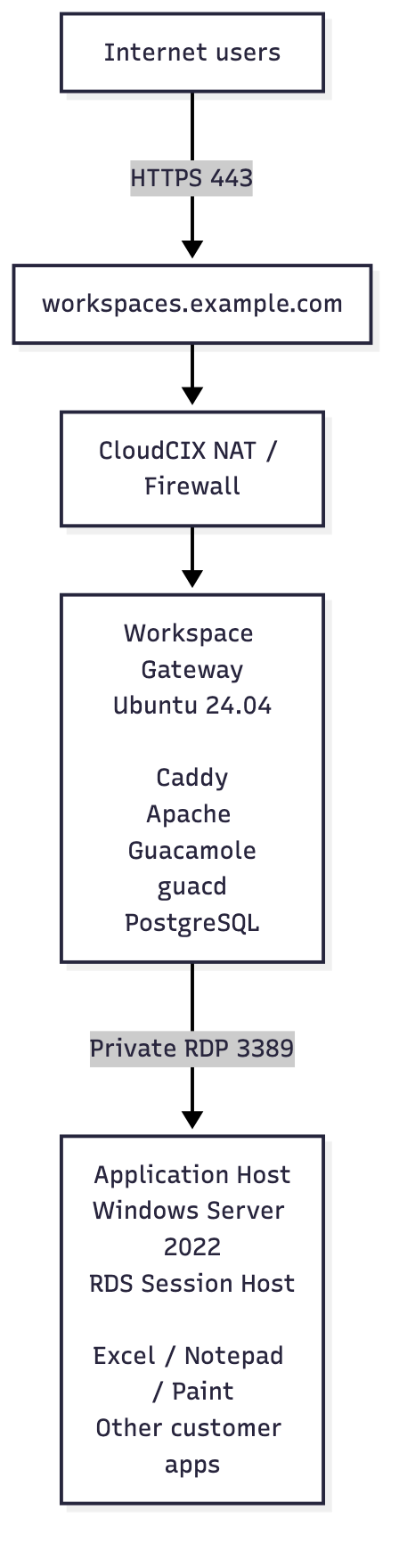
The Windows Application Host does not need to expose RDP to the public Internet. Guacamole connects to it over the CloudCIX private project network.
2. Deployment models
2.1 Pilot / small deployment
A simple pilot can use:
one Ubuntu Workspace Gateway;
one Windows RDS Session Host;
local Windows users;
PostgreSQL-backed Guacamole users;
one Guacamole connection per published application.
This is the easiest architecture to understand and is suitable for validation and small controlled deployments.
2.2 Production deployment
A larger deployment should normally add:
Active Directory Domain Services or another centrally managed Windows identity source;
an RD Connection Broker and Session Collection;
an RD Licensing server with valid RDS CALs;
multiple RD Session Hosts if capacity or availability requires them;
centralised/persistent user profile storage where appropriate;
multiple Guacamole gateways and an external load balancer if web-tier high availability is required;
external or highly available PostgreSQL for larger environments;
formal monitoring, backup, patching, and certificate/DNS management.
The rest of this guide starts with the two-VM reference implementation and identifies where production practice differs.
3. Planning information
Before building anything, record the deployment-specific values below.
Item |
Example |
|---|---|
Public Workspaces DNS name |
|
Workspace Gateway hostname |
|
Workspace Gateway private IP |
|
Workspace Gateway public/NAT IP |
|
Windows App Host hostname |
|
Windows App Host private IP |
|
Private network |
|
Guacamole version |
|
Windows version |
Windows Server 2022 |
Authentication mode |
Local / LDAP / Entra ID OIDC |
Example users throughout this guide are deliberately generic:
cloudcix-user1
cloudcix-user2
cloudcix-user3
Example application assignments:
User |
Excel |
Notepad |
Paint |
|---|---|---|---|
|
Yes |
No |
No |
|
Yes |
No |
No |
|
Yes |
Yes |
Yes |
4. Recommended starting VM sizes
These values are starting points only. Application workload, file sizes, concurrency, add-ins, and Office usage can change requirements significantly.
Workspace Gateway
For a small pilot:
4 vCPU
8 GB RAM
40-80 GB OS disk
Ubuntu 24.04 LTS
The Gateway mostly proxies browser display traffic and handles authentication. It is normally much lighter than the Windows application host.
Windows Application Host
For a small pilot:
4-8 vCPU
16 GB RAM or more
80 GB+ OS disk
additional storage as required by applications/user data
Windows Server 2022 or a supported later release
For production, size from measured application memory/CPU usage and expected concurrent sessions rather than using a fixed rule.
Phase 2: Build the CloudCIX infrastructure in Boole
5. Build CloudCIX Workspaces in Boole
This reference deployment puts two hosts in one Boole project: an Ubuntu LXD Workspace Gateway for Caddy and Guacamole, and a Windows Server Hyper-V host for Remote Desktop Services applications. The Gateway has a public address for HTTPS; it reaches the Windows host over the project’s private network.
Boole keeps the project configuration together: router, networks, firewall, geofilter, SSH keys and compute instances. The Boole guide includes a video walkthrough:
Create and configure a Boole projectUse it to create the project and its resources.
In the Boole firewall, use the Private zone for private-to-private traffic
(10.x.x.x → 10.x.x.x), such as 10.20.0.2 → 10.20.0.3. Allow
RDP (TCP 3389) from the Gateway’s private address to the Windows host. Keep
public RDP closed; allow public HTTPS only to the Gateway, and restrict SSH to
administrators.
Phase 3: Configure the Workspace Gateway
6. Prepare the Ubuntu Workspace Gateway
Connect using SSH:
ssh administrator@<gateway-public-ip>
Confirm networking:
ip addr
ip route
ping -c 4 <app-host-private-ip>
Install a TCP test utility:
sudo apt update
sudo apt install -y netcat-openbsd
Once Windows RDP is enabled, this command should succeed:
nc -vz -w 5 <app-host-private-ip> 3389
7. Install Docker Engine on Ubuntu
Install Docker Engine and the Compose plugin using Docker’s official instructions for Ubuntu:
Install Docker Engine on Ubuntu8. Create the Guacamole deployment
Create the deployment directories:
sudo mkdir -p /opt/guacamole
sudo chown administrator:administrator /opt/guacamole
cd /opt/guacamole

mkdir -p guacamole-home/extensions
The final directory layout will resemble:
/opt/guacamole/
├── .env
├── Caddyfile
├── compose.yaml
├── initdb.sql
├── branding/
└── guacamole-home/
    └── extensions/
9. Generate the PostgreSQL schema
The Guacamole database must be initialized before the first start.
cd /opt/guacamole

docker run --rm guacamole/guacamole:1.6.0 \
  /opt/guacamole/bin/initdb.sh --postgresql \
  > initdb.sql
Confirm the file is populated:
ls -lh initdb.sql
head initdb.sql
The PostgreSQL container runs files in
/docker-entrypoint-initdb.d/only when its data directory is initialized for the first time. If the PostgreSQL volume already contains a database, changinginitdb.sqlwill not re-run the schema initialization.
10. Create the environment file
Generate a strong PostgreSQL password:
openssl rand -base64 32
Create /opt/guacamole/.env:
POSTGRES_PASSWORD=<strong-random-password>
Protect it:
chmod 600 /opt/guacamole/.env
Never commit this file to a public source repository.
11. Create the Docker Compose stack
Create /opt/guacamole/compose.yaml:
services:
  postgres:
    image: postgres:17
    container_name: guac-postgres
    restart: unless-stopped

    environment:
      POSTGRES_DB: guacamole_db
      POSTGRES_USER: guacamole_user
      POSTGRES_PASSWORD: ${POSTGRES_PASSWORD}

    volumes:
      - postgres_data:/var/lib/postgresql/data
      - ./initdb.sql:/docker-entrypoint-initdb.d/001-initdb.sql:ro

    healthcheck:
      test: ["CMD-SHELL", "pg_isready -U guacamole_user -d guacamole_db"]
      interval: 5s
      timeout: 5s
      retries: 20

    networks:
      - guac-internal

  guacd:
    image: guacamole/guacd:1.6.0
    container_name: guacd
    restart: unless-stopped

    networks:
      - guac-internal

  guacamole:
    image: guacamole/guacamole:1.6.0
    container_name: guacamole
    restart: unless-stopped

    depends_on:
      postgres:
        condition: service_healthy
      guacd:
        condition: service_started

    environment:
      GUACD_HOSTNAME: guacd

      POSTGRESQL_ENABLED: "true"
      POSTGRESQL_HOSTNAME: postgres
      POSTGRESQL_DATABASE: guacamole_db
      POSTGRESQL_USERNAME: guacamole_user
      POSTGRESQL_PASSWORD: ${POSTGRES_PASSWORD}

      WEBAPP_CONTEXT: ROOT
      REMOTE_IP_VALVE_ENABLED: "true"
      GUACAMOLE_HOME: /etc/guacamole

    volumes:
      - ./guacamole-home:/etc/guacamole:ro

    ports:
      - "127.0.0.1:8080:8080"

    networks:
      - guac-internal

  caddy:
    image: caddy:2
    container_name: caddy
    restart: unless-stopped

    depends_on:
      - guacamole

    ports:
      - "80:80"
      - "443:443"

    volumes:
      - ./Caddyfile:/etc/caddy/Caddyfile:ro
      - caddy_data:/data
      - caddy_config:/config

    networks:
      - guac-internal

networks:
  guac-internal:

volumes:
  postgres_data:
  caddy_data:
  caddy_config:
This design exposes only Caddy to normal public service traffic. Administrative SSH may also be reachable, but only from trusted administrator addresses or a VPN. Guacamole is bound to loopback on the Docker host, while guacd and PostgreSQL are reachable only on the internal Docker network.
12. Configure Caddy and HTTPS
Create /opt/guacamole/Caddyfile:
workspaces.example.com {
    reverse_proxy guacamole:8080
}
Do not prefix the hostname with http:// when you want Caddy automatic HTTPS.
Start the stack:
cd /opt/guacamole
docker compose pull
docker compose up -d
Check status:
docker compose ps
Expected containers:
caddy
guac-postgres
guacamole
guacd
Check Caddy:
docker logs caddy --tail=100
Test externally:
curl -I http://workspaces.example.com
curl -Iv https://workspaces.example.com
Caddy should redirect HTTP to HTTPS and automatically obtain/renew the certificate.
ACME/TLS warning: Public certificate validation requires external reachability to ports 80 and/or 443 for both initial issuance and later renewal. A firewall or geofilter that only permits selected client addresses can cause certificate validation to fail even when the site is reachable from an administrator’s own IP. Do not attempt to solve this by whitelisting a single fixed Let’s Encrypt address range.
Phase 4: Configure Windows RDS and publish applications
13. Prepare the Windows Application Host
Log in to the Windows Server and open PowerShell as Administrator.
Check network configuration:
ipconfig
Verify the expected private address is present.
Enable Remote Desktop if required:
Set-ItemProperty `
  -Path 'HKLM:\System\CurrentControlSet\Control\Terminal Server' `
  -Name 'fDenyTSConnections' `
  -Value 0

Enable-NetFirewallRule -DisplayGroup "Remote Desktop"
Verify RDP is listening:
Get-NetTCPConnection -LocalPort 3389 -State Listen
Back on the Ubuntu Gateway:
nc -vz -w 5 <app-host-private-ip> 3389
Do not continue until private RDP connectivity works.
14. Install the Remote Desktop Session Host role
Check the role:
Get-WindowsFeature RDS-RD-Server
Install if required:
Install-WindowsFeature RDS-RD-Server -IncludeManagementTools
Restart-Computer
After reboot:
Get-WindowsFeature RDS-RD-Server
The expected state is:
[X] Remote Desktop Session Host
15. RDS licensing for production
A production RDS environment requires a properly activated Remote Desktop Licensing server and appropriate per-user or per-device RDS CALs.
For a formal production deployment, deploy and configure:
RD Licensing;
the required RDS CALs;
the licensing mode (Per User or Per Device) appropriate to the customer’s agreement.
RD Connection Broker and Session Collections are topology and application-delivery components rather than licensing components; they are covered separately in the production and scaling guidance.
Do not rely on an unlicensed test/grace configuration as a production service.
16. Install customer applications
Install all applications that will be published to users on the Windows Application Host.
Examples:
Microsoft Excel
Microsoft Word
customer line-of-business software
Notepad
Paint
Verify the executable path for each application.
Example Excel discovery:
Get-ChildItem "C:\Program Files\Microsoft Office" `
  -Recurse -Filter EXCEL.EXE `
  -ErrorAction SilentlyContinue |
  Select-Object -ExpandProperty FullName
A common Microsoft 365 Apps path is:
C:\Program Files\Microsoft Office\root\Office16\EXCEL.EXE
17. Microsoft 365 Apps / Excel on an RDS host
Microsoft 365 Apps used on a shared RDS host must be deployed using Shared Computer Activation and each user must have an eligible Microsoft 365 license.
A typical Office Deployment Tool configuration contains:
<Configuration>
  <Add OfficeClientEdition="64" Channel="Current">
    <Product ID="O365ProPlusRetail">
      <Language ID="en-us" />
    </Product>
  </Add>
  <Property Name="SharedComputerLicensing" Value="1" />
  <Display Level="None" AcceptEULA="TRUE" />
</Configuration>
The exact product ID/channel must match the customer’s Microsoft 365 entitlement and deployment policy.
18. Publish applications as RemoteApps
There are two approaches.
18.1 Recommended production approach: RDS deployment and collection
For a full Microsoft RDS deployment, create a Session Collection and publish applications through Server Manager or New-RDRemoteApp.
Example:
New-RDRemoteApp `
  -CollectionName "CloudCIX Workspaces" `
  -DisplayName "Microsoft Excel" `
  -FilePath "C:\Program Files\Microsoft Office\root\Office16\EXCEL.EXE" `
  -Alias "Excel"
Repeat for each application. This is the preferred production model because it integrates with normal RDS collection management, licensing, Connection Broker, and scale-out.
18.2 Standalone pilot method
For a simple single-host pilot without a full RDS collection, the RemoteApp allow-list can be populated directly.
Use this helper function:
function Publish-WorkspaceRemoteApp {
    param(
        [Parameter(Mandatory=$true)][string]$Alias,
        [Parameter(Mandatory=$true)][string]$DisplayName,
        [Parameter(Mandatory=$true)][string]$Path
    )

    if (-not (Test-Path $Path)) {
        throw "Application not found: $Path"
    }

    $App = "HKLM:\SOFTWARE\Microsoft\Windows NT\CurrentVersion\Terminal Server\TSAppAllowList\Applications\$Alias"

    New-Item -Path $App -Force | Out-Null

    New-ItemProperty -Path $App -Name 'Name' `
        -PropertyType String -Value $DisplayName -Force | Out-Null

    New-ItemProperty -Path $App -Name 'Path' `
        -PropertyType String -Value $Path -Force | Out-Null

    New-ItemProperty -Path $App -Name 'VPath' `
        -PropertyType String -Value $Path -Force | Out-Null

    New-ItemProperty -Path $App -Name 'CommandLineSetting' `
        -PropertyType DWord -Value 0 -Force | Out-Null
}
Publish common test applications:
Publish-WorkspaceRemoteApp `
  -Alias "Excel" `
  -DisplayName "Microsoft Excel" `
  -Path "C:\Program Files\Microsoft Office\root\Office16\EXCEL.EXE"

Publish-WorkspaceRemoteApp `
  -Alias "Notepad" `
  -DisplayName "Notepad" `
  -Path "C:\Windows\System32\notepad.exe"

Publish-WorkspaceRemoteApp `
  -Alias "Paint" `
  -DisplayName "Paint" `
  -Path "C:\Windows\System32\mspaint.exe"
Verify:
Get-ChildItem 'HKLM:\SOFTWARE\Microsoft\Windows NT\CurrentVersion\Terminal Server\TSAppAllowList\Applications'
Guacamole references the aliases as:
||Excel
||Notepad
||Paint
The direct registry method is useful for a standalone pilot, but it should not replace a properly designed RDS deployment when the service is moved to production.
Phase 5: Configure Guacamole users, connections, and permissions
19. Initial Guacamole administration
Open:
https://workspaces.example.com
After a new PostgreSQL schema initialization, the default Guacamole administrator credentials are:
Username: guacadmin
Password: guacadmin
Use these only for the first login. Immediately create a new named administration account, for example:
admin
Give it full Guacamole administration permissions, sign out, verify the new account works, then delete the default guacadmin account.
Never leave the default Guacamole credentials active on an Internet-facing deployment.
20. Create a full desktop test connection first
Before troubleshooting RemoteApp, prove ordinary RDP through Guacamole.
Create a Guacamole connection:
Name:       CloudCIX App Host - Desktop Test
Protocol:   RDP
Hostname:   <app-host-private-ip>
Port:       3389
Security:   NLA
For a first test, provide a Windows administrator/test account.
During a pilot it is acceptable to set:
Ignore server certificate: Enabled
For production, prefer a Windows RDP certificate that can be validated rather than permanently ignoring server certificate errors. Where possible, connect Guacamole to a private DNS name that matches the certificate instead of using a raw IP address.
Leave Guacamole Proxy Parameters blank. Those fields describe guacd, not the Windows destination. The Docker deployment already defines GUACD_HOSTNAME=guacd.
If the full desktop works, proceed to RemoteApp.
21. Create Guacamole application connections
Create one Guacamole RDP connection per published application.
Excel
Name:               Excel
Protocol:           RDP
Hostname:           <app-host-private-ip>
Port:               3389
Security mode:      NLA
Remote application: ||Excel
Notepad
Name:               Notepad
Protocol:           RDP
Hostname:           <app-host-private-ip>
Port:               3389
Security mode:      NLA
Remote application: ||Notepad
Paint
Name:               Paint
Protocol:           RDP
Hostname:           <app-host-private-ip>
Port:               3389
Security mode:      NLA
Remote application: ||Paint
Again, leave Guacamole Proxy Parameters blank unless you intentionally run a non-default guacd topology.
22. Create Windows users
For a pilot using local Windows accounts, create one Windows account per Workspaces user.
$Password1 = Read-Host "Password for cloudcix-user1" -AsSecureString
$Password2 = Read-Host "Password for cloudcix-user2" -AsSecureString
$Password3 = Read-Host "Password for cloudcix-user3" -AsSecureString

New-LocalUser -Name "cloudcix-user1" -Password $Password1 -FullName "CloudCIX User 1"
New-LocalUser -Name "cloudcix-user2" -Password $Password2 -FullName "CloudCIX User 2"
New-LocalUser -Name "cloudcix-user3" -Password $Password3 -FullName "CloudCIX User 3"
Grant RDP rights:
Add-LocalGroupMember `
  -Group "Remote Desktop Users" `
  -Member "cloudcix-user1","cloudcix-user2","cloudcix-user3"
Verify:
Get-LocalGroupMember "Remote Desktop Users"
For production, prefer centrally managed domain identities rather than manually maintained local accounts.
23. Create Guacamole users and permissions
In Guacamole:
Settings -> Users -> New User
Create:
cloudcix-user1
cloudcix-user2
cloudcix-user3
For the simple one-login credential forwarding model described next, set the Guacamole username and password to match the corresponding Windows credentials.
Do not give normal users Guacamole administration rights.
Assign connection USE permissions according to the required application set.
Example:
cloudcix-user1
└── Excel

cloudcix-user2
└── Excel

cloudcix-user3
├── Excel
├── Notepad
└── Paint
For larger deployments, create Guacamole user groups such as:
Workspace-Excel-Users
Workspace-Office-Users
Workspace-LineOfBusiness-Users
Grant application connection permissions to groups, then place users in the appropriate groups. This is easier to maintain than assigning every connection directly to each user.
24. Avoiding the second Windows login prompt
With Guacamole database authentication, Guacamole can dynamically pass the credentials the user entered at the portal to RDP.
In each application connection, set:
Username: ${GUAC_USERNAME}
Password: ${GUAC_PASSWORD}
Domain:   [blank for local accounts]
If local Windows accounts require an explicit computer scope, set the Domain field to the Windows computer name.
The user experience becomes:
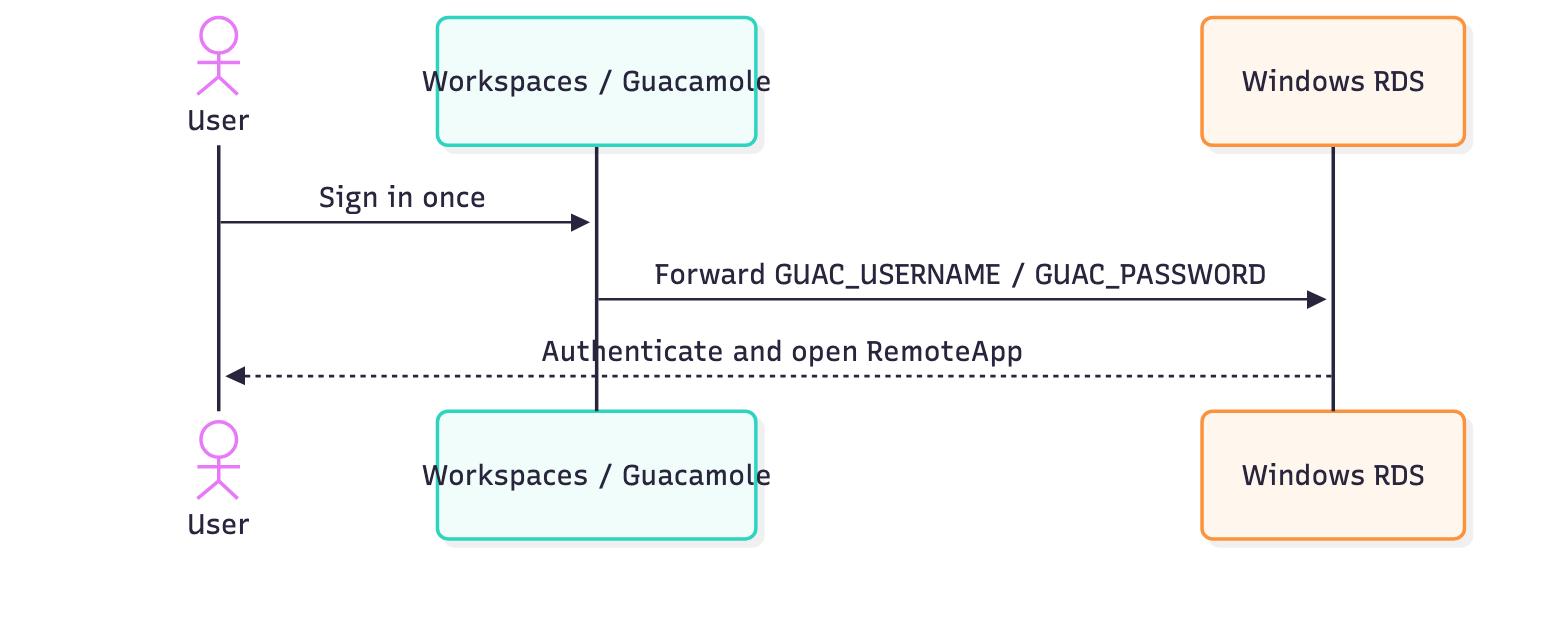
This only works when the Guacamole credential is also a valid Windows credential.
Security note: ${GUAC_PASSWORD} is not stored as a static connection password. It is dynamically substituted from the password supplied during the Guacamole login. It is still sensitive authentication material and should be protected accordingly.
25. Validate multi-user isolation
Open separate browser/private sessions for different users and launch applications simultaneously.
On the Windows host:
quser
Expected pattern:
USERNAME          SESSIONNAME      ID   STATE
cloudcix-user1    rdp-tcp#1         4   Active
cloudcix-user2    rdp-tcp#2         5   Active
cloudcix-user3    rdp-tcp#3         6   Active
Verify individual application processes:
Get-Process EXCEL,notepad,mspaint -IncludeUserName -ErrorAction SilentlyContinue |
  Select-Object Id,UserName,ProcessName
The goal is to prove that each user has their own Windows RDS session and their own application processes.
Separate RDS sessions provide user/session isolation on a shared operating system. If a customer requires VM-level isolation between users, use separate/personal session hosts or another dedicated VM architecture.
Using a published application
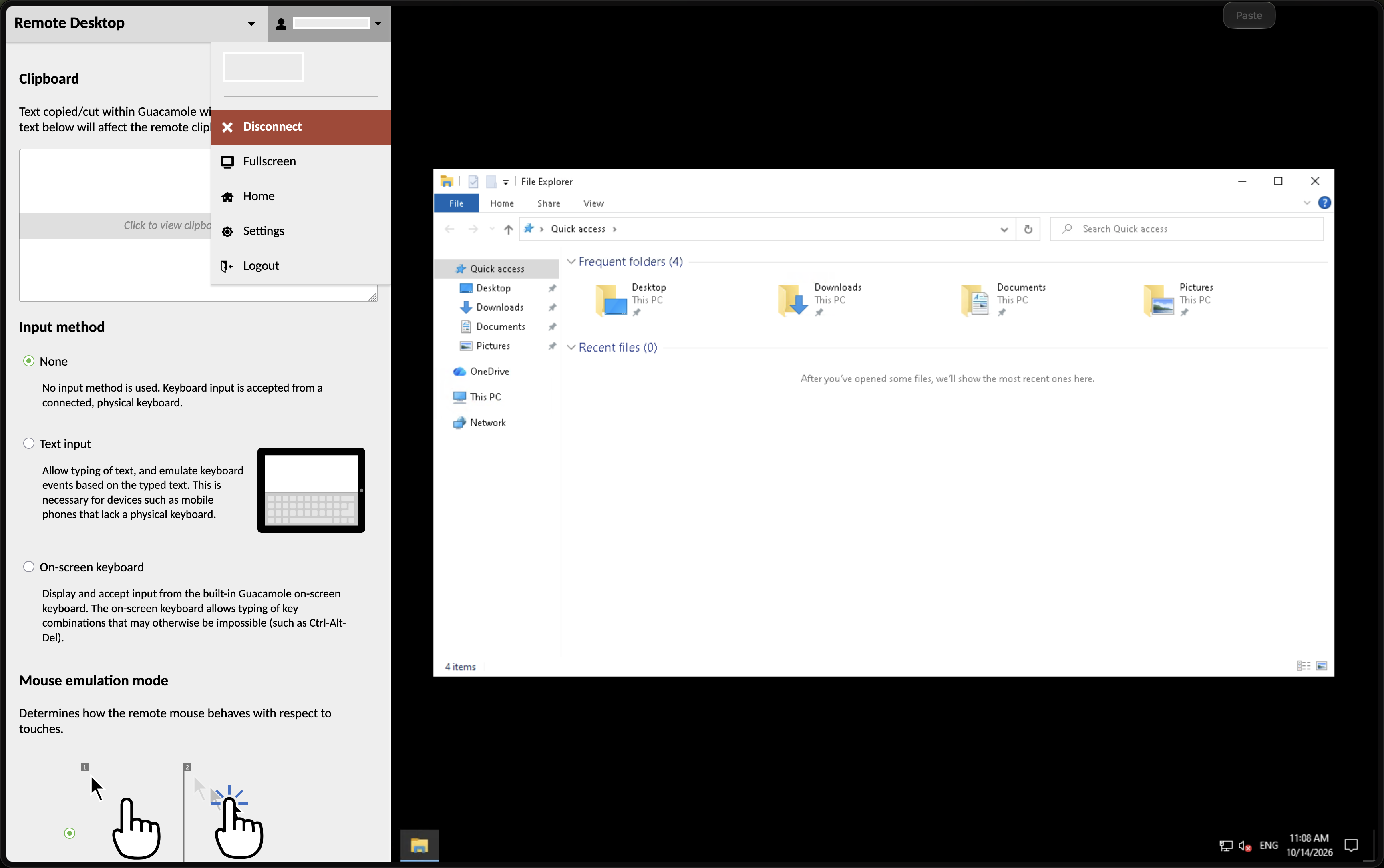
Disconnect from an application stream
To disconnect from a streamed application, press Ctrl+Alt+Shift to open
the Guacamole menu. Open the active connection menu at the top left and select
Disconnect.
Phase 6: Branding and Microsoft Entra ID SSO
27. Customise the CloudCIX Workspaces login page
Guacamole supports extensions that can provide CSS, translations, icons, and static resources. This can be used to replace the default branding with customer or CloudCIX Workspaces branding.
27.1 Create the branding structure
cd /opt/guacamole
mkdir -p branding/css
mkdir -p branding/resources/images
mkdir -p branding/translations
mkdir -p guacamole-home/extensions
Place a customer logo and square favicon in:
branding/resources/images/customer-logo.png
branding/resources/images/customer-icon.png
Use a tightly cropped horizontal logo for the login page and a simple square icon for the browser favicon.
27.2 Create the extension manifest
Create branding/guac-manifest.json:
{
  "guacamoleVersion": "1.6.0",
  "name": "CloudCIX Workspaces Branding",
  "namespace": "cloudcix-workspaces-branding",
  "smallIcon": "resources/images/customer-icon.png",
  "largeIcon": "resources/images/customer-icon.png",
  "css": [
    "css/workspaces.css"
  ],
  "translations": [
    "translations/en.json"
  ],
  "resources": {
    "resources/images/customer-logo.png": "image/png",
    "resources/images/customer-icon.png": "image/png"
  }
}
The guacamoleVersion must match the Guacamole version in use.
27.3 Change the browser title
Create branding/translations/en.json:
{
  "APP": {
    "NAME": "CloudCIX Workspaces"
  }
}
For a white-label customer, change the value to the customer-facing service name.
27.4 Replace the login logo
Create branding/css/workspaces.css:
.login-ui .login-dialog .logo {
    width: 12.75em;
    height: 5em;
    margin: 1em auto 1.5em auto;

    background-image:
        url('app/ext/cloudcix-workspaces-branding/resources/images/customer-logo.png');

    background-repeat: no-repeat;
    background-position: center;
    background-size: contain;
}

.login-ui .login-dialog .version {
    display: none;
}
Adjust the width/height to suit the supplied logo.
27.5 Build the extension
sudo apt install -y zip
cd /opt/guacamole/branding

zip -r \
  /opt/guacamole/guacamole-home/extensions/cloudcix-workspaces-branding.jar \
  .
Validate the manifest before rebuilding:
python3 -m json.tool /opt/guacamole/branding/guac-manifest.json >/dev/null \
  && echo "JSON valid"
Recreate Guacamole:
cd /opt/guacamole
docker compose up -d --force-recreate guacamole
Check extension loading:
docker logs guacamole --tail=200 | grep -i workspaces
Browser titles and favicons are often cached aggressively. Close/reopen the tab or clear site cache when validating changes.
The CSS selectors and manifest structure in this example are validated for Guacamole 1.6.0. Re-test custom branding after any Guacamole upgrade, as frontend markup or styling may change. If OpenID Connect is later configured to force immediate SSO redirection, users will not normally see the local Guacamole login form, although the custom title, favicon, and other interface branding can still apply.
28. Microsoft Entra ID SSO overview
CloudCIX Workspaces can use Microsoft Entra ID to authenticate users to the Guacamole portal through OpenID Connect (OIDC).
This changes the portal login flow from:

into:

Guacamole’s OpenID Connect extension provides authentication only. PostgreSQL should remain enabled to store the connections, groups, and application permissions available to the authenticated identity.
29. Important distinction: Entra portal SSO versus Windows RDP SSO
Microsoft Entra ID OIDC authenticates the user to Guacamole/CloudCIX Workspaces. It does not give Guacamole the user’s Microsoft password.
Therefore, after switching to Entra OIDC:
${GUAC_PASSWORD}
cannot be assumed to contain a Windows password that can be forwarded to RDP.
This is a critical design point.
Common options are:
Entra SSO to the portal + separate RDP credential prompt Simplest. Users authenticate to Workspaces with Entra, then authenticate to Windows when launching an application.
Traditional AD/LDAP authentication to Guacamole + credential pass-through If Guacamole authenticates directly against an Active Directory/LDAP source using the same password as Windows, ${GUAC_USERNAME} / ${GUAC_PASSWORD} can be forwarded to RDP. This provides a single-password experience but is not the same as Entra OIDC/MFA SSO.
Entra SSO + managed per-user Windows secrets Use an approved secrets-management design and dynamically map a Windows credential to the authenticated user. Do not hard-code shared administrator credentials into connections.
Enterprise Windows identity architecture For larger deployments, domain-join the RDS environment and design authentication/credential delegation as part of the overall Active Directory/Entra architecture.
You will not have end-to-end passwordless Entra-to-RDP SSO simply by enabling the Guacamole OpenID extension; they are separate authentication boundaries.
30. Register CloudCIX Workspaces in Microsoft Entra ID
In the Microsoft Entra admin center:
Go to Entra ID -> App registrations -> New registration.
Name the application, for example CloudCIX Workspaces.
For a customer-specific deployment, normally select Accounts in this organisational directory only (single tenant).
Add the public Workspaces URL as a Web redirect URI, for example:
https://workspaces.example.com/
Record:
Directory (tenant) ID
Application (client) ID
Go to Authentication.
Under Implicit grant and hybrid flows, enable ID tokens.
Guacamole 1.6.0’s built-in OpenID Connect extension uses the OIDC implicit flow. Microsoft generally recommends authorization-code-based flows for newly developed applications, but enabling ID token issuance is required for this Guacamole integration.
No client secret is required by the Guacamole 1.6.0 OpenID Connect configuration described here.
MFA and Conditional Access policies are configured and enforced in Microsoft Entra ID, not in Guacamole.
31. Obtain the Entra OIDC endpoints
Use the tenant-specific discovery document:
https://login.microsoftonline.com/<TENANT_ID>/v2.0/.well-known/openid-configuration
For a standard Entra workforce tenant, the key values are normally:
Authorization endpoint:
https://login.microsoftonline.com/<TENANT_ID>/oauth2/v2.0/authorize

JWKS endpoint:
https://login.microsoftonline.com/<TENANT_ID>/discovery/v2.0/keys

Issuer:
https://login.microsoftonline.com/<TENANT_ID>/v2.0
Always confirm these against the tenant’s discovery document rather than assuming values for national/special clouds.
32. Configure Guacamole for Microsoft Entra OIDC
Add to /opt/guacamole/.env:
ENTRA_TENANT_ID=<tenant-guid>
ENTRA_CLIENT_ID=<application-client-guid>
Then add the following to the guacamole service environment in compose.yaml:
OPENID_ENABLED: "true"
OPENID_AUTHORIZATION_ENDPOINT: "https://login.microsoftonline.com/${ENTRA_TENANT_ID}/oauth2/v2.0/authorize"
OPENID_JWKS_ENDPOINT: "https://login.microsoftonline.com/${ENTRA_TENANT_ID}/discovery/v2.0/keys"
OPENID_ISSUER: "https://login.microsoftonline.com/${ENTRA_TENANT_ID}/v2.0"
OPENID_CLIENT_ID: "${ENTRA_CLIENT_ID}"
OPENID_REDIRECT_URI: "https://workspaces.example.com/"
OPENID_USERNAME_CLAIM_TYPE: "preferred_username"
OPENID_SCOPE: "openid profile email"
The redirect URI must exactly match the URI registered in Entra ID.
preferred_username is commonly useful with Microsoft Entra v2 ID tokens because it maps naturally to the user’s sign-in name/UPN. Treat it as a login/display identifier rather than a permanent authorization identifier.
Apply the change:
cd /opt/guacamole
docker compose up -d
Check logs:
docker logs guacamole --tail=200
33. Decide whether to force Entra redirect
During initial testing, keep PostgreSQL login available as a break-glass path.
To show the normal Guacamole login page and offer OpenID as an option, place OpenID after other authentication extensions:
EXTENSION_PRIORITY: "*,openid"
After Entra SSO has been fully tested, you can force unauthenticated users directly to Entra by giving OpenID first priority:
EXTENSION_PRIORITY: "openid"
When OpenID has priority, users who are not already authenticated are redirected to Entra and do not see the normal Guacamole login form.
Keep a documented recovery procedure. If SSO configuration breaks, an administrator can temporarily change the extension priority back to *,openid and recreate the Guacamole container to restore local database login.
34. Map Entra users to Guacamole permissions
The OpenID extension authenticates the identity; PostgreSQL supplies connection information and permissions.
Choose a predictable Guacamole username claim and ensure the PostgreSQL user/group model matches it.
For example, with:
OPENID_USERNAME_CLAIM_TYPE: "preferred_username"
an Entra user might authenticate as:
alice@example.com
Create/manage the corresponding Guacamole identity and grant it the required application connections or Guacamole group membership.
For a controlled allow-list model, you can require an externally authenticated Entra user to also exist in PostgreSQL by adding:
POSTGRESQL_USER_REQUIRED: "true"
and pre-creating the PostgreSQL/Guacamole users that are allowed to access Workspaces. Alternatively, Guacamole can create database accounts automatically for externally authenticated users with:
POSTGRESQL_AUTO_CREATE_ACCOUNTS: "true"
Automatically created users receive no application permissions by default, so application entitlements must still be granted directly or through groups. Choose one provisioning model deliberately and document it.
For larger deployments, Entra can emit group claims and Guacamole can read a configured groups claim, but group claims and large-group/overage behavior should be validated carefully before making them the sole authorization mechanism. A simple and predictable first production design is to manage application entitlements in Guacamole PostgreSQL groups and automate that management separately if required.
35. User experience examples
Database authentication with credential forwarding
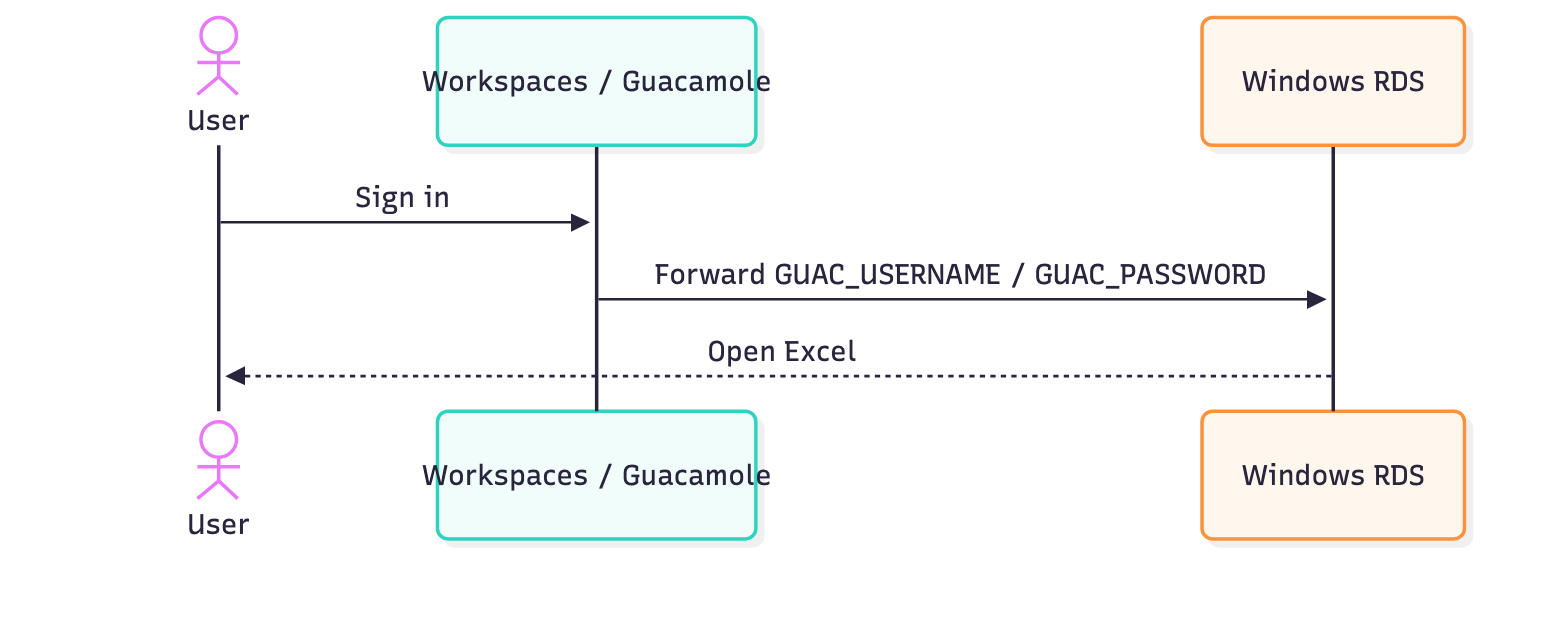
Entra ID portal SSO with separate Windows prompt
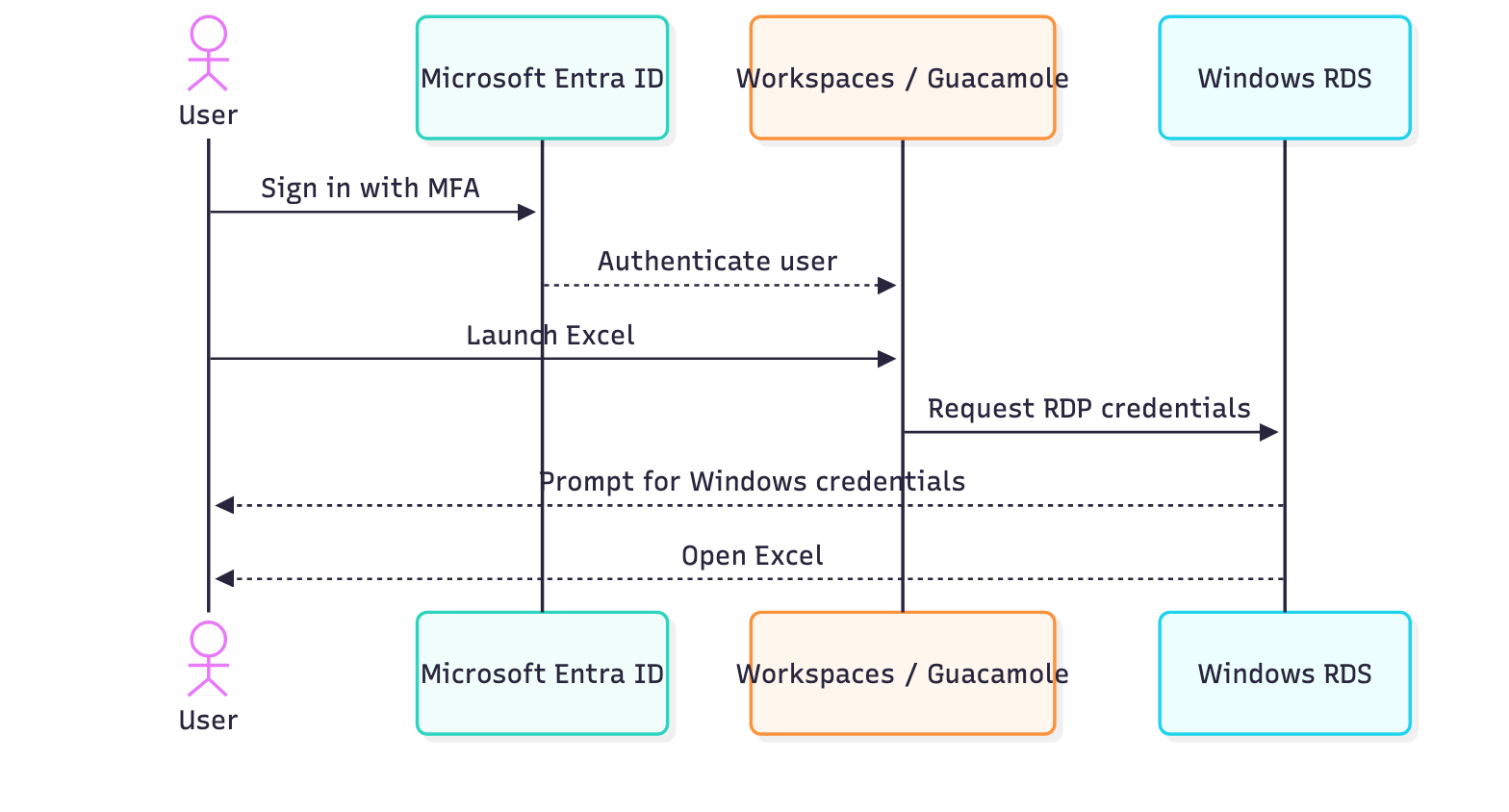
Phase 7: Operations, security, backup, upgrades, and scaling
36. Operational commands
Linux / Docker
Service status:
cd /opt/guacamole
docker compose ps
All logs:
docker compose logs --tail=200
Individual logs:
docker logs guacamole --tail=200
docker logs guacd --tail=200
docker logs caddy --tail=200
docker logs guac-postgres --tail=200
Private RDP test:
nc -vz -w 5 <app-host-private-ip> 3389
DNS:
dig +short workspaces.example.com
TLS:
curl -Iv https://workspaces.example.com
Windows
RDS sessions:
quser
Published pilot RemoteApps:
Get-ChildItem 'HKLM:\SOFTWARE\Microsoft\Windows NT\CurrentVersion\Terminal Server\TSAppAllowList\Applications'
Application processes by owner:
Get-Process EXCEL,notepad,mspaint -IncludeUserName -ErrorAction SilentlyContinue |
  Select-Object Id,UserName,ProcessName
RDP listener:
Get-NetTCPConnection -LocalPort 3389 -State Listen
37. Common troubleshooting
Workspaces hostname resolves, but HTTPS fails
Check:
dig +short workspaces.example.com
nc -vz workspaces.example.com 80
nc -vz workspaces.example.com 443
docker logs caddy --tail=200
If Caddy reports ACME validation timeouts, check CloudCIX firewall/geofilter rules. Certificate authorities must be able to reach the service from outside the customer’s normal source addresses.
Guacamole opens, but RDP fails
From the Gateway:
nc -vz -w 5 <app-host-private-ip> 3389
Then verify Windows:
Get-NetTCPConnection -LocalPort 3389 -State Listen
Check docker logs guacd for RDP errors.
Full desktop works but RemoteApp does not
Verify:
the application exists at the configured path;
the RemoteApp alias is published;
the Guacamole Remote application field uses ||Alias;
the user has RDP rights;
the application is supported in a multi-session environment.
User receives a second login prompt
If using database authentication and matching Windows credentials, confirm the Guacamole connection has:
Username: ${GUAC_USERNAME}
Password: ${GUAC_PASSWORD}
If using Entra OIDC, a second Windows authentication step is expected unless an additional Windows credential architecture has been implemented.
User can log in but sees no applications
Check Guacamole USE permission on each connection or the user’s Guacamole group membership.
Excel licensing/activation problems
Confirm:
Microsoft 365 Apps was installed for RDS/shared use;
SharedComputerLicensing is enabled;
the user has an eligible Microsoft 365 license;
the RDS host can reach Microsoft’s licensing services.
38. Security hardening checklist
Before production:
☐ Only the Workspace Gateway is publicly reachable for the service.
☐ Public TCP 3389 to Windows is removed or tightly restricted.
☐ TCP 5432, 4822, and 8080 are not public.
☐ SSH TCP 22 is limited to administrative source addresses/VPN.
☐ guacadmin default account has been replaced/removed.
☐ Strong separate administrator credentials are in use.
☐ Entra MFA/Conditional Access is enabled where appropriate.
☐ Windows RDS CALs are configured.
☐ Microsoft 365 shared computer licensing is configured where Office is used.
☐ Windows application control is implemented if strict app restriction is required.
☐ Clipboard, drive redirection, printing, audio, and file-transfer features are enabled only where required by the customer.
☐ Linux, Docker images, Windows, and applications are patched.
☐ .env and backup files are protected.
☐ Backups are tested.
☐ Monitoring/alerting is configured.
☐ RDP server certificates are trusted/managed for production where feasible.
39. Backup and restore
Protect the Workspace Gateway in Boole
Before major Gateway changes, consider taking a CloudCIX LXD snapshot:
Boole
└── Manage
    └── Compute
        └── Snapshots
            └── Manage
                └── Create Snapshot LXD
A snapshot is a quick point-in-time checkpoint and is useful before risky changes, but it is not a replacement for a backup.
For a separate LXD backup:
Boole
└── Manage
    └── Compute
        └── Backups
            └── Manage
                └── Create Backup LXD
Select the Workspace Gateway instance, give the snapshot or backup a meaningful name, and wait for processing to complete. Use Revert on a snapshot only when you intend to discard changes made after that snapshot.
These infrastructure protections complement, rather than replace, the application-level database and configuration backups below.
Back up the Guacamole database
cd /opt/guacamole
mkdir -p backups

docker exec guac-postgres \
  pg_dump -U guacamole_user guacamole_db \
  > backups/guacamole_db_$(date +%F).sql
Back up configuration and branding
tar -czf backups/guacamole_config_$(date +%F).tar.gz \
  compose.yaml \
  Caddyfile \
  initdb.sql \
  branding \
  guacamole-home
Back up .env separately in a protected secrets/backup system. Do not place it in a normal shared archive unless that archive is encrypted and access-controlled.
Restore
Restore configuration files to /opt/guacamole first. The SQL dump created above contains the Guacamole schema and data, so restore it into an empty compatible database, not on top of an already initialized Guacamole schema.
For the Docker reference deployment, stop the Guacamole web container before replacing the database:
cd /opt/guacamole
docker compose stop guacamole

docker exec guac-postgres \
  psql -U guacamole_user -d postgres \
  -c "DROP DATABASE IF EXISTS guacamole_db WITH (FORCE);"

docker exec guac-postgres \
  psql -U guacamole_user -d postgres \
  -c "CREATE DATABASE guacamole_db OWNER guacamole_user;"

cat <backup.sql> | \
  docker exec -i guac-postgres \
  psql -U guacamole_user -d guacamole_db

docker compose start guacamole
Use a PostgreSQL and Guacamole version compatible with the backup. Test restore procedures in a non-production environment before depending on them.
40. Updating the platform
For normal Docker image updates:
cd /opt/guacamole
docker compose pull
docker compose up -d
However, do not blindly change Guacamole versions. Guacamole database schema upgrades can require version-specific SQL migration scripts. Read the release notes and database upgrade instructions for the target Guacamole version before changing the image tags.
Take a database/configuration backup before upgrades.
41. Scaling CloudCIX Workspaces
More Windows capacity
When the Windows host becomes the capacity limit:
deploy additional RD Session Hosts;
use a supported RDS Connection Broker and Session Collection;
centralise licensing;
use appropriate profile storage;
publish applications through the RDS deployment rather than standalone registry entries.
More Guacamole capacity
For a larger web tier:
run multiple Guacamole web nodes;
place them behind an HTTPS load balancer that supports WebSockets;
use session affinity/stickiness for active web sessions;
use a shared PostgreSQL service;
replicate the same Guacamole extensions, branding, and configuration to every web node;
keep application hosts on private networks only.
A scaled architecture may resemble:
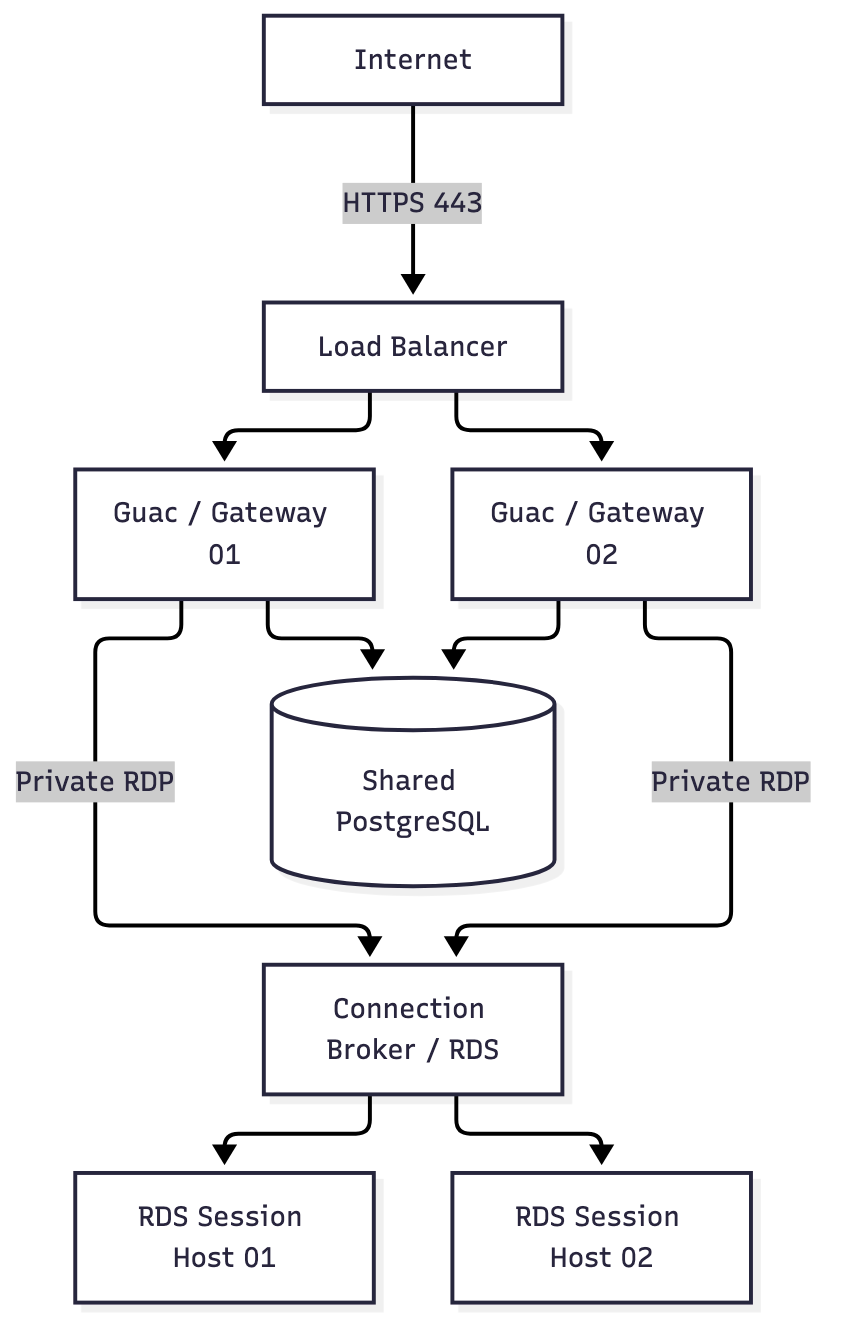
42. Production design recommendations
For a production customer service, prefer:
CloudCIX private networking with no public RDP.
A supported Microsoft RDS deployment with Connection Broker, Session Collection, and Licensing.
Domain-managed Windows users rather than local accounts.
Guacamole PostgreSQL groups for application authorization.
Entra ID OIDC for portal MFA/Conditional Access where required.
A clearly documented strategy for Windows/RDP credentials after enabling Entra SSO.
Application-control policies for customers that require strong restrictions.
Shared computer activation for Microsoft 365 Apps.
Tested backup/restore and upgrade procedures.
Capacity monitoring and additional Session Hosts before saturation.
43. Official references
CloudCIX documentation: https://docs.cloudcix.com/
CloudCIX Boole guide: https://docs.cloudcix.com/using/boole.html
CloudCIX SSH/NAT/firewall tutorial: https://docs.cloudcix.com/tutorials/ssh_connect.html
CloudCIX Terraform guide: https://docs.cloudcix.com/developers/cloudcix_terraform_guide.html
Docker Engine on Ubuntu: https://docs.docker.com/engine/install/ubuntu/
Apache Guacamole 1.6.0 Docker deployment: https://guacamole.apache.org/doc/gug/guacamole-docker.html
Apache Guacamole configuration and parameter tokens: https://guacamole.apache.org/doc/gug/configuring-guacamole.html
Apache Guacamole OpenID Connect SSO: https://guacamole.apache.org/doc/gug/openid-auth.html
Caddy automatic HTTPS: https://caddyserver.com/docs/automatic-https
Microsoft RDS deployment: https://learn.microsoft.com/en-us/windows-server/remote/remote-desktop-services/rds-deploy-infrastructure
Microsoft RDS session collections / RemoteApp: https://learn.microsoft.com/en-us/windows-server/remote/remote-desktop-services/rds-create-collection
Microsoft RDS licensing: https://learn.microsoft.com/en-us/windows-server/remote/remote-desktop-services/rds-license-session-hosts
Microsoft 365 Apps on RDS: https://learn.microsoft.com/en-us/microsoft-365-apps/deploy/deploy-microsoft-365-apps-remote-desktop-services
Microsoft Entra ID OpenID Connect: https://learn.microsoft.com/en-us/entra/identity-platform/v2-protocols-oidc